Lively Wallpaper
A downloadable wallpaper-engine for Windows
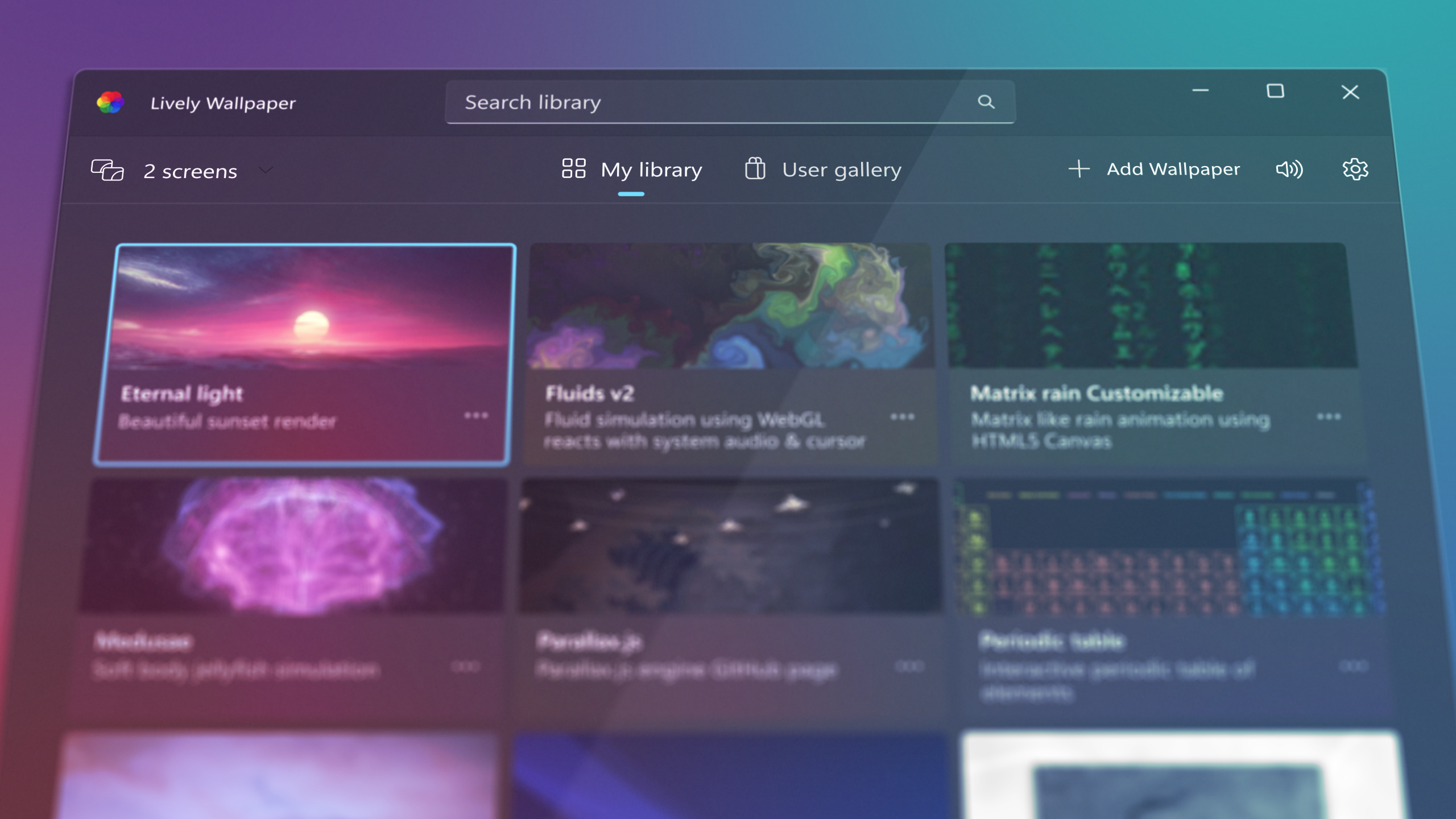
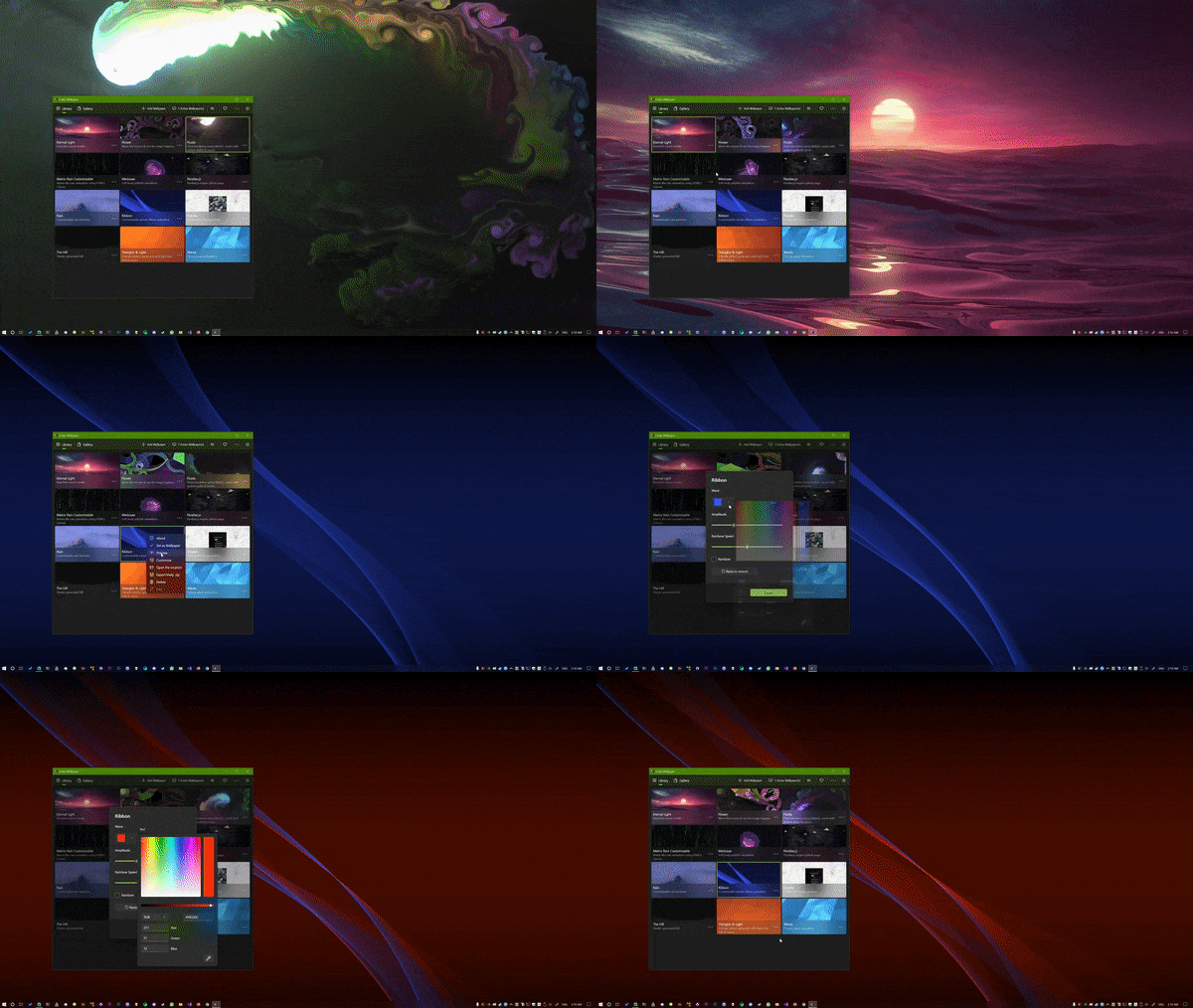
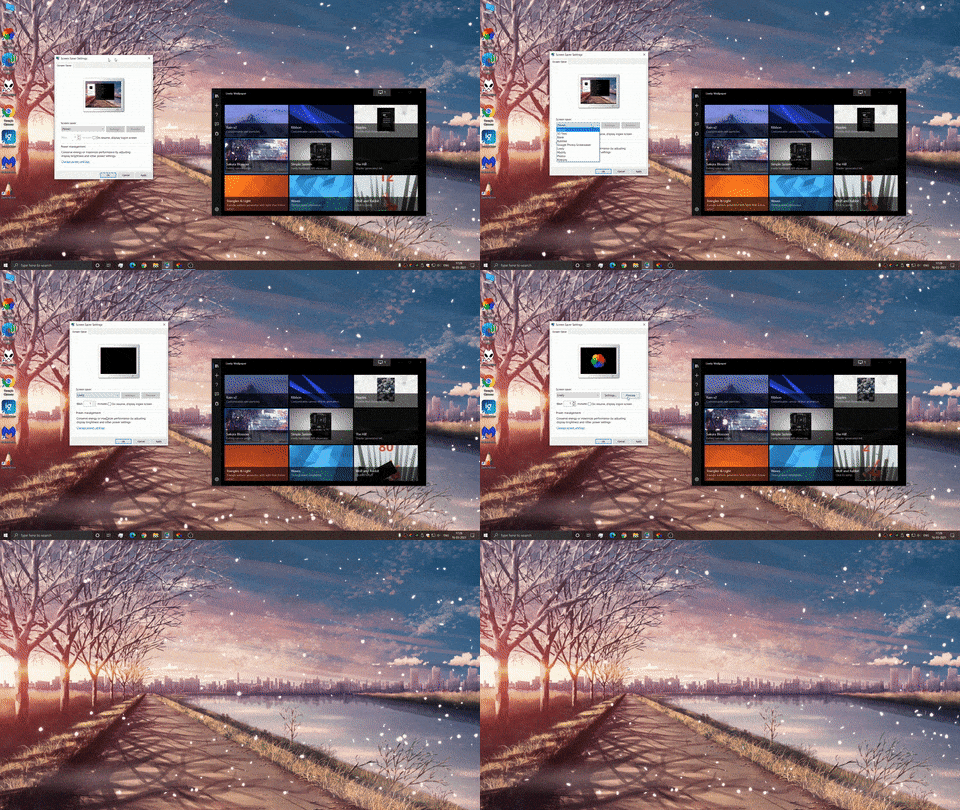
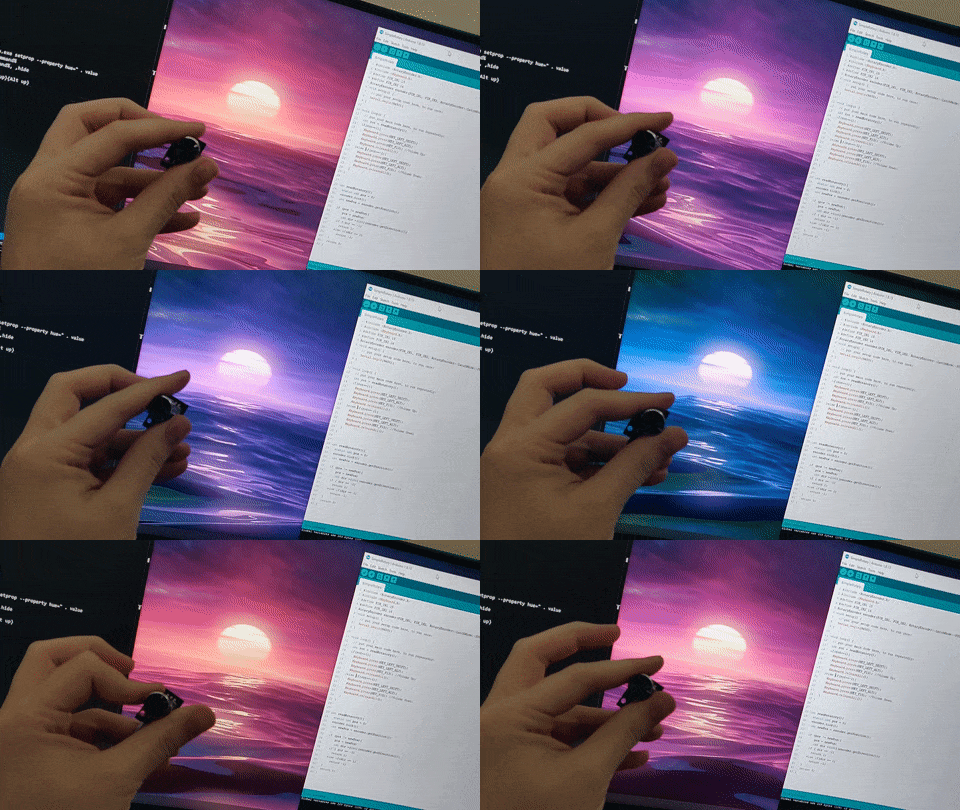
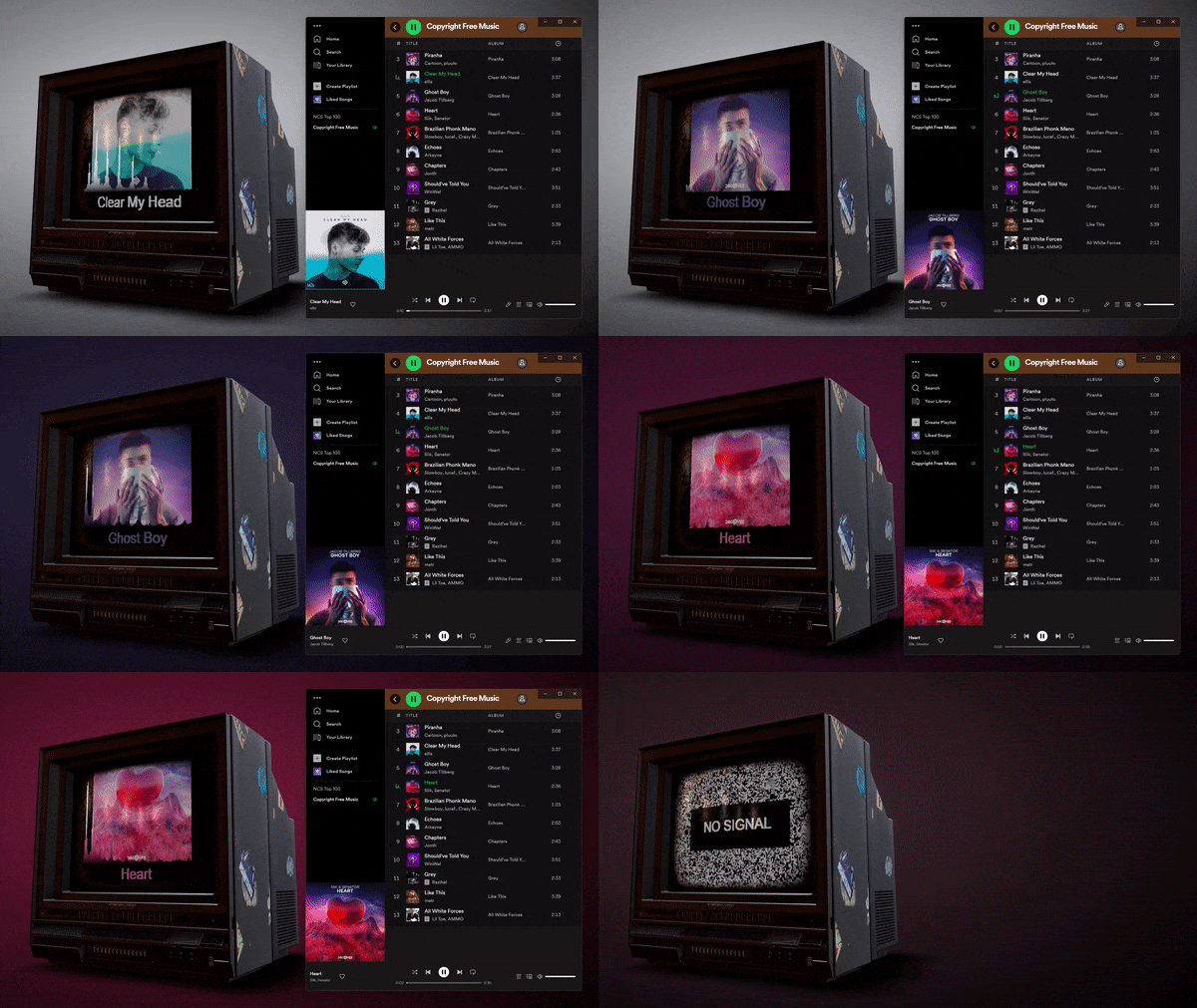
Lively Wallpaper turns your desktop background into something alive - video loops, GIFs, animated shaders, even interactive web pages - instead of a static image sitting there doing nothing.
This is a Windows-packaged build of the open-source Lively Wallpaper, one of the most-starred desktop customization tools on itch.io. Nothing about the engine is changed - this build just gets it in front of itch's desktop-customization audience.
Why free instead of Wallpaper Engine
Wallpaper Engine on Steam costs $3.99 and works great, but it's closed-source and locked to Steam. Lively does the same core job - animated/interactive wallpapers, per-monitor support, pause-on-fullscreen - and is completely free, with the source code open for anyone to check or modify.
Features
- Video, GIF, and animated image wallpapers
- Interactive web page wallpapers (HTML/CSS/JS)
- Real-time shader wallpapers
- Per-application pause (games/fullscreen apps don't fight it for GPU)
- Multi-monitor support, per-monitor wallpaper
- Playlist mode - cycle wallpapers on a timer
- System tray control, low idle resource usage
Install
- Download
LivelyWallpaper.exe - Run it and grant the one-time Windows permission prompt (needed to draw behind desktop icons)
- Right-click the tray icon → Browse Wallpapers → pick or add your own
Download
Install instructions
- Click Download and grab
LivelyWallpaper.exe. - Run the app. Windows SmartScreen may show "Windows protected your PC" since the build isn't code-signed - click More info → Run anyway to proceed.
- On first launch, Windows will ask for a permission prompt to let Lively draw behind your desktop icons - click Yes, this is required for it to work.
- Once open, right-click the tray icon (bottom-right, near the clock) → Browse Wallpapers to pick one, or Add Wallpaper to load your own video/GIF/shader.
- To stop or uninstall, right-click the tray icon → Quit, then remove via Windows Settings → Apps.